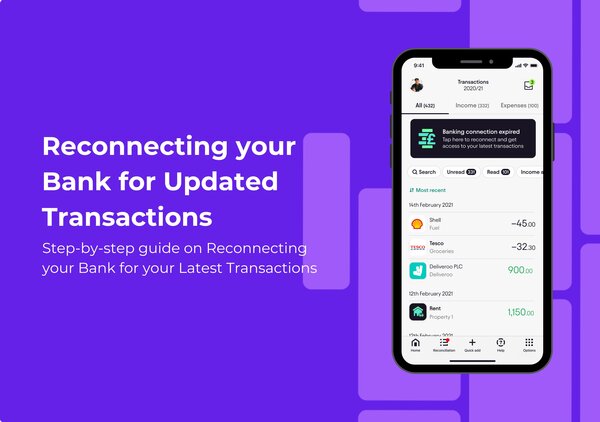
When Your Bank Connection Needs A Quick Refresh
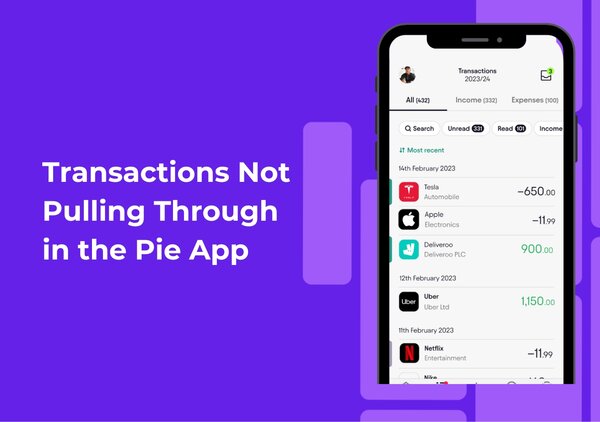
If your bank transactions aren’t showing in the Pie app or things look out of date, it usually means your bank connection just needs a quick reset. This can happen from time to time for security reasons (for example, when your bank forces a new login or updates its systems). The good news: you can usually fix it yourself in under a minute.
Your Step-by-Step Guide
By following these steps, you can ensure that your bank transactions are always current in the Pie Tax App, helping you keep accurate records for your self-assessment tax returns.
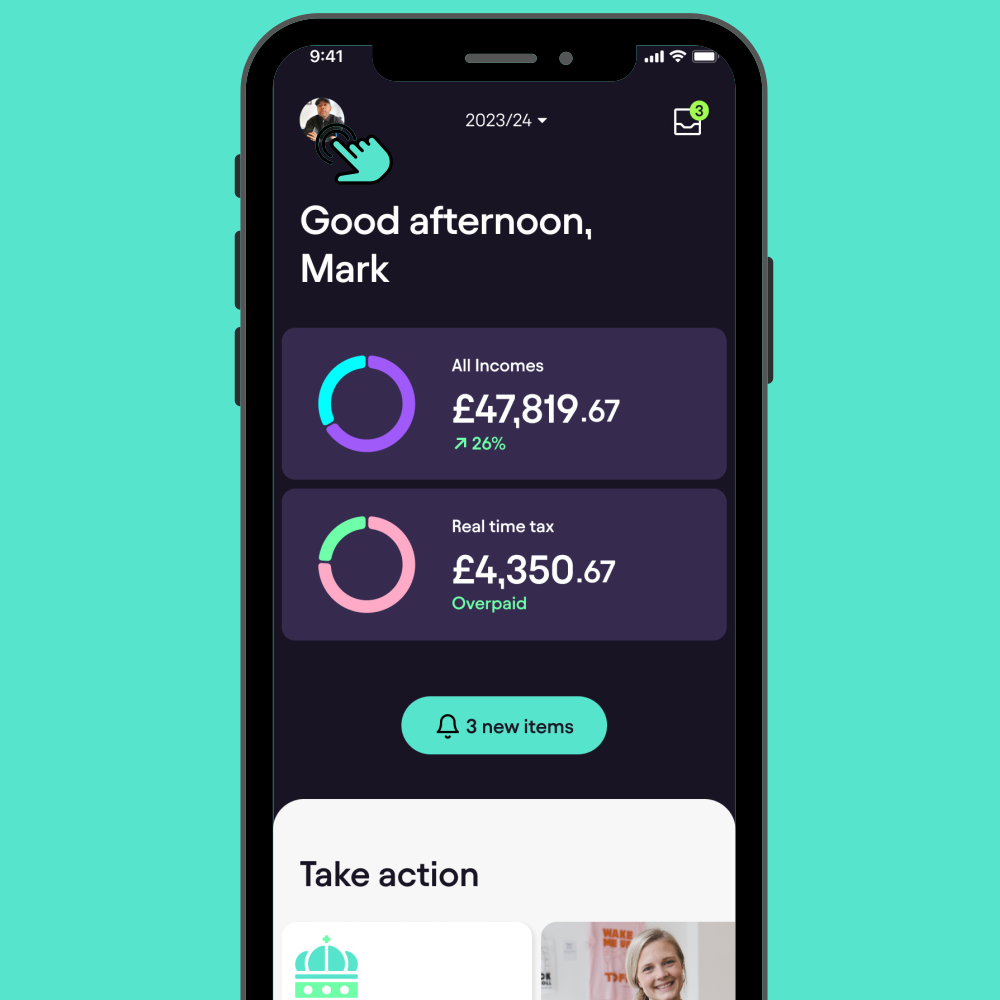
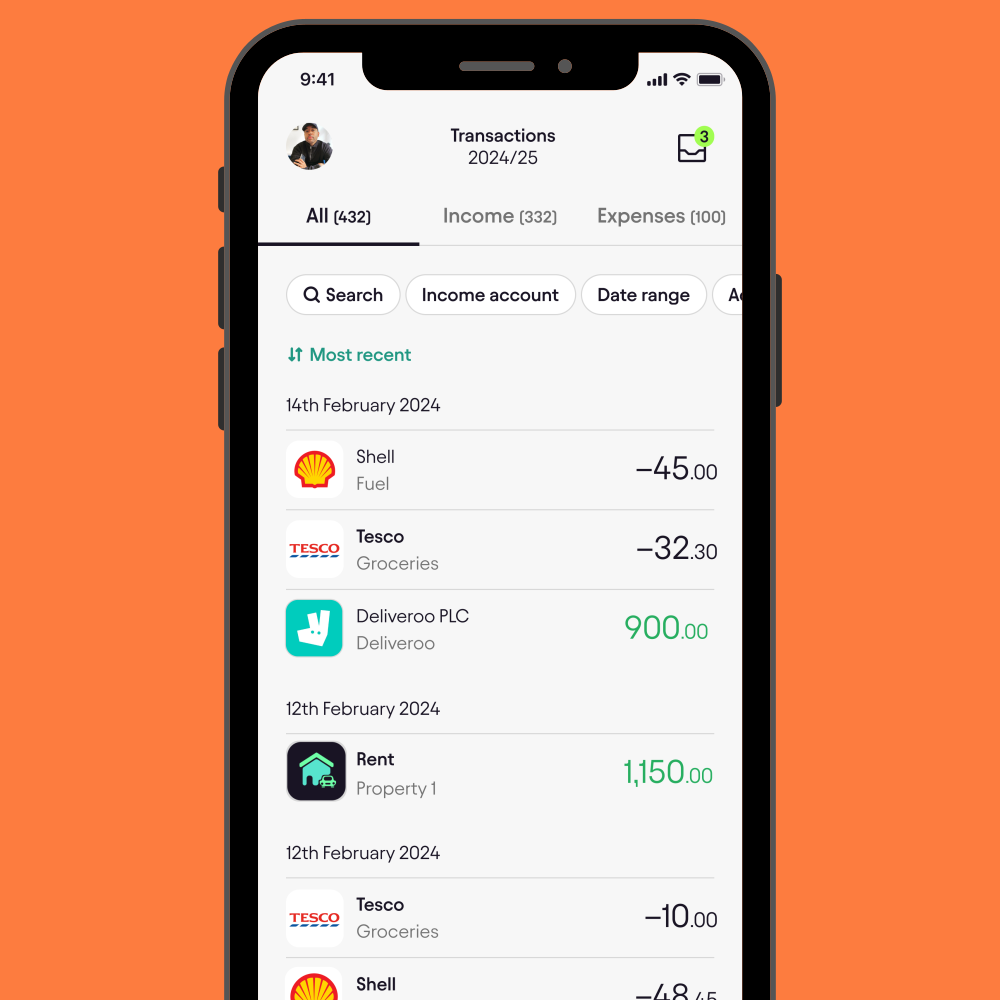
Start by opening the Pie Tax App on your device. Once you’re logged in, head over to your profile by tapping on your profile avatar in the top right corner.Open the App and Access Your Profile
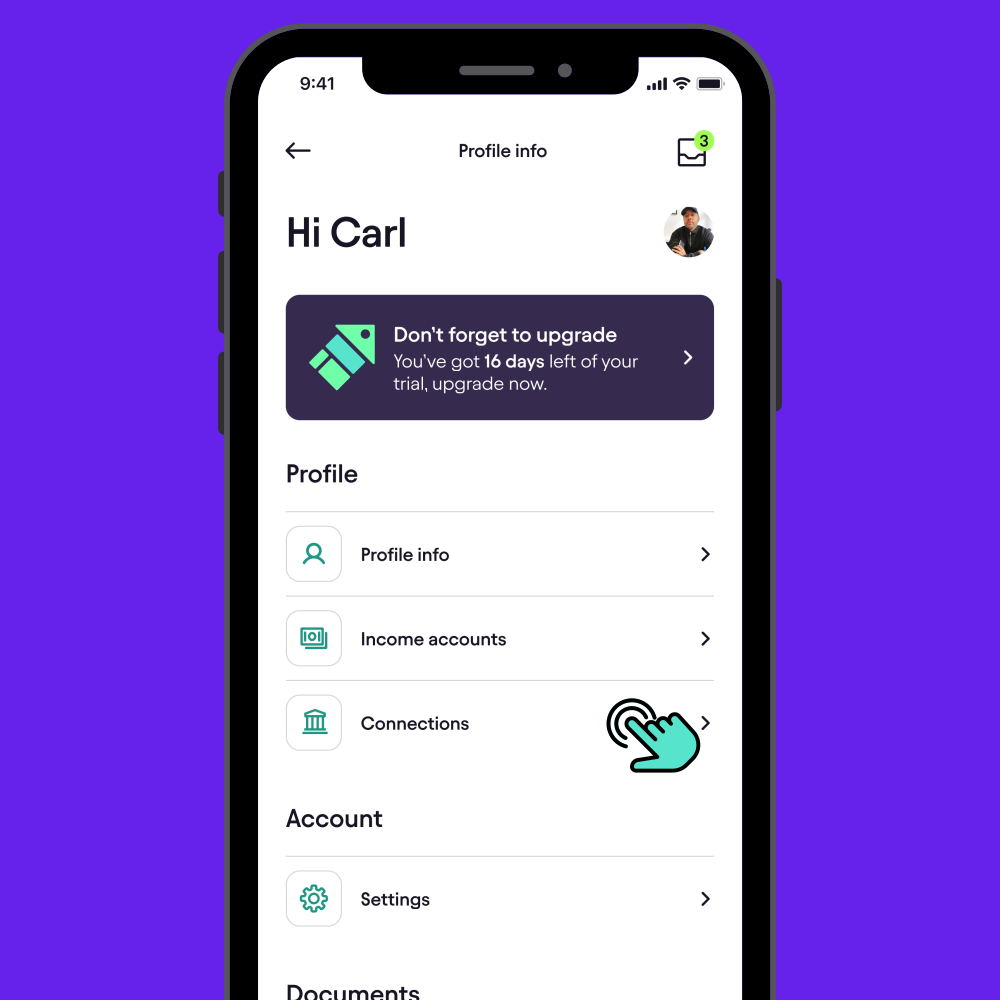
Next, scroll down the profile page until you see the option labelled ‘Connections’. Tap on this to view your linked bank accounts.Access Connections
In the ‘Connections’ section, you’ll see a list of all the bank accounts you’ve linked to the app. Find the bank account that needs to be reconnected and tap on it. To proceed with the reconnection, first, you’ll need to disconnect the account. Tap ‘Disconnect Bank’ and confirm by tapping ‘Yes’ when prompted.Identify and Disconnect the Bank

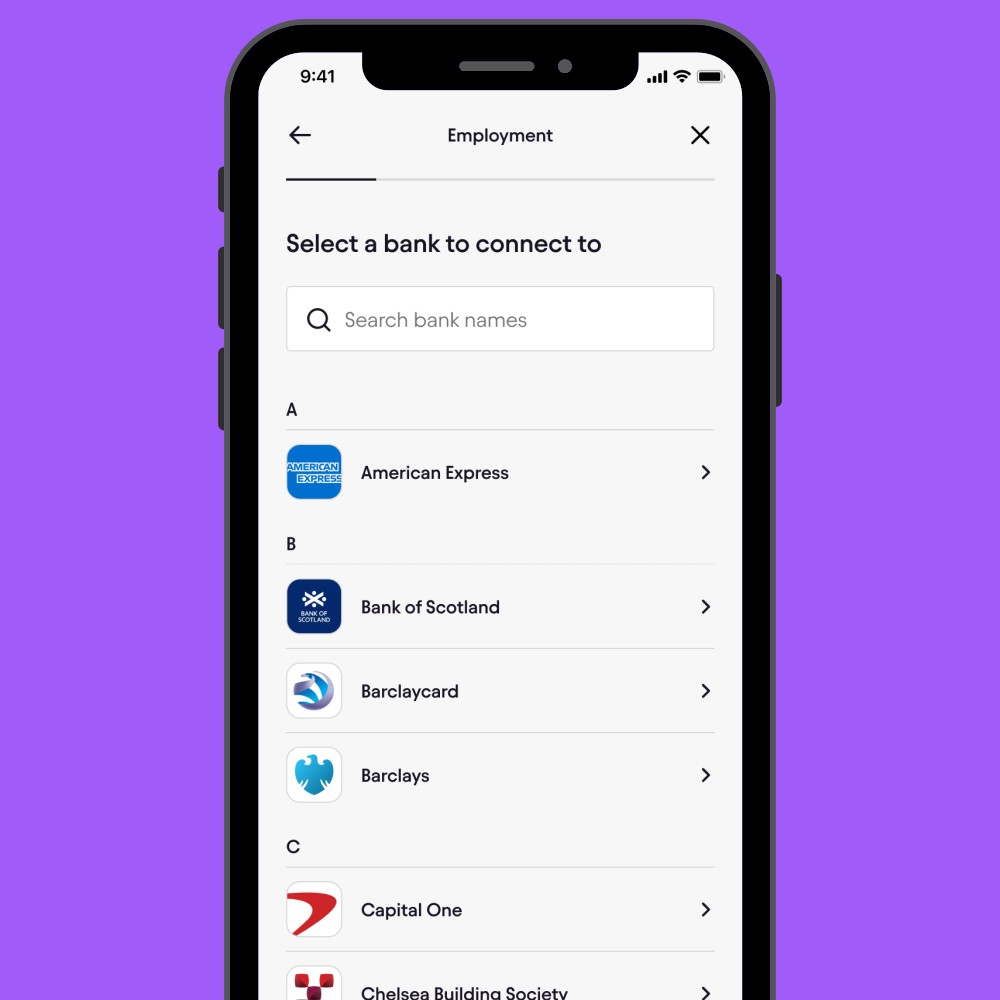
After disconnecting, you’ll need to reconnect the bank account to refresh your transactions. Tap ‘Add new bank account’ and search for the bank you just disconnected. Select it to start the reconnection process. Reconnect Your Bank Account
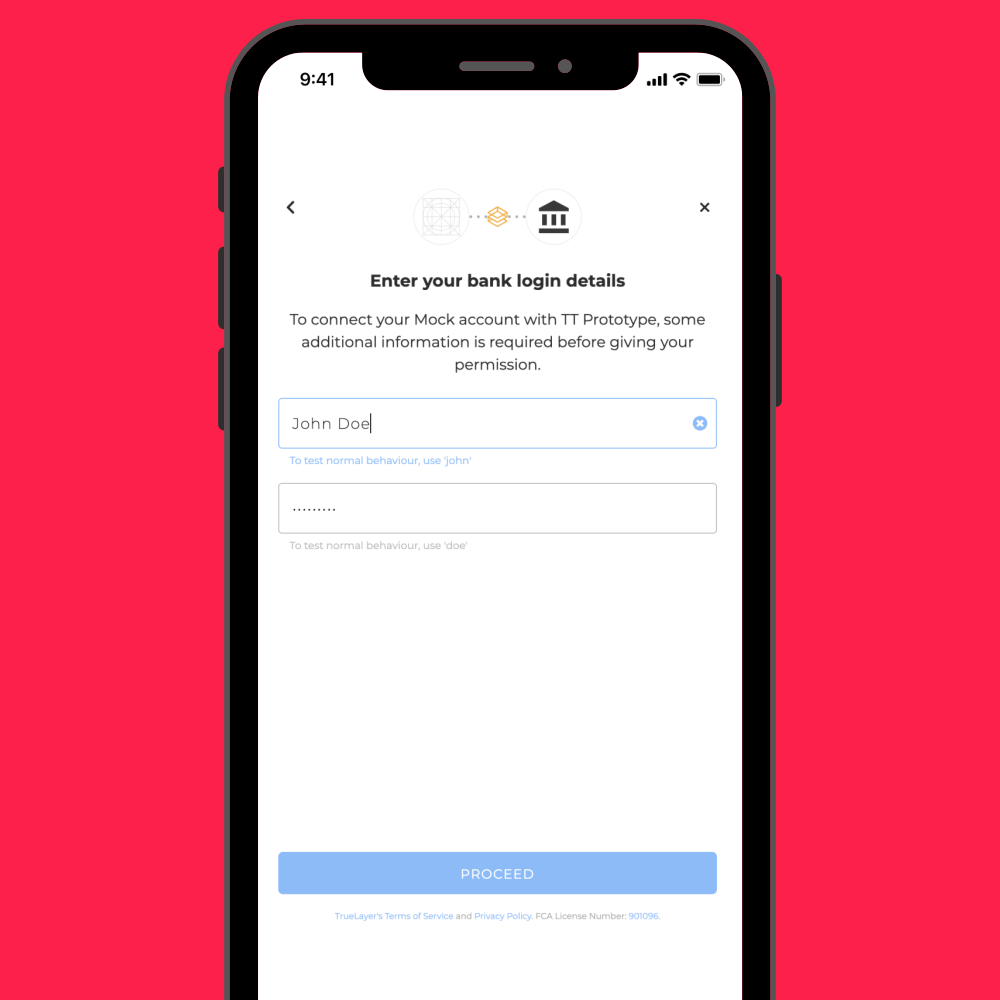
You’ll be prompted to enter your bank login details to reconnect the account. The process may vary depending on your bank—some banks might ask you to provide a code sent via phone or email. Follow the on-screen instructions to complete the reconnection. Enter Your Bank Login Details
Once reconnected, your bank transactions will start importing into the app. This usually takes a few minutes, but in some cases, it can take up to 24-48 hours. You’ll be notified once the import is complete, and your transactions will be up-to-date.Wait for Transactions to Import
Still not working? Message us in the app
If your bank data still isn’t pulling through after you’ve updated your bank connection and tried removing and re-adding the bank, then it’s time for the Pie team to take a closer look.
Sometimes the issue isn’t something you can fix on your side for example, the bank may be blocking access, the connection may have expired in the background, or something unusual may have been flagged that needs a manual reset. When this happens, the quickest way forward is to reach out to us directly through the app.
Quick Recap Summary
If your bank connection isn’t updating, start by logging into the app, tapping your Avatar, and heading to Connections. From there, choose Bank connection and try updating it. If that doesn’t sort things out, remove the bank entirely and add it again. And if you’re still stuck after that, just message us in the app we’re always here to check it for you.